Your tasks on one side, your calendar on the other
The project brief to write, the quote to follow up, the presentation to prepare: your tasks live in your project management tool. Your meetings, appointments and lunches, meanwhile, fill your calendar. As long as these two spaces stay separate, one question remains unanswered: when will this work actually get done?
So you copy tasks into your calendar by hand, juggle two browser tabs, or worse, plan nothing and watch important tasks slip from week to week. That is exactly what the FluidOps Google Calendar integration fixes: your tasks and your calendar in one place, and a time slot booked in a few clicks.
Why booking a time slot for each task works so well
It's not just about convenience. Psychologists call it an implementation intention: deciding in advance when and where you will do something ("Wednesday at 9:30, I write the project brief"). A meta-analysis by Peter Gollwitzer and Paschal Sheeran (2006), covering 94 studies, shows that this simple commitment clearly increases the chances of following through, compared with a good intention left vague ("I really should get to it").
The second benefit: fewer back-and-forths. Constantly switching between tasks or tools has a measurable mental cost: every switch takes time to readjust (Rubinstein, Meyer and Evans, 2001). And interruptions don't just slow you down: in the study by Gloria Mark and colleagues (2008), interrupted people made up for it by working faster, at the price of more stress and frustration.
FluidOps & Google Calendar sync: the features
- See your calendar inside FluidOps. The “Calendar” widget shows your Google events as a list, by day or by week, right next to your projects. No need to open another tab to check whether you're free.
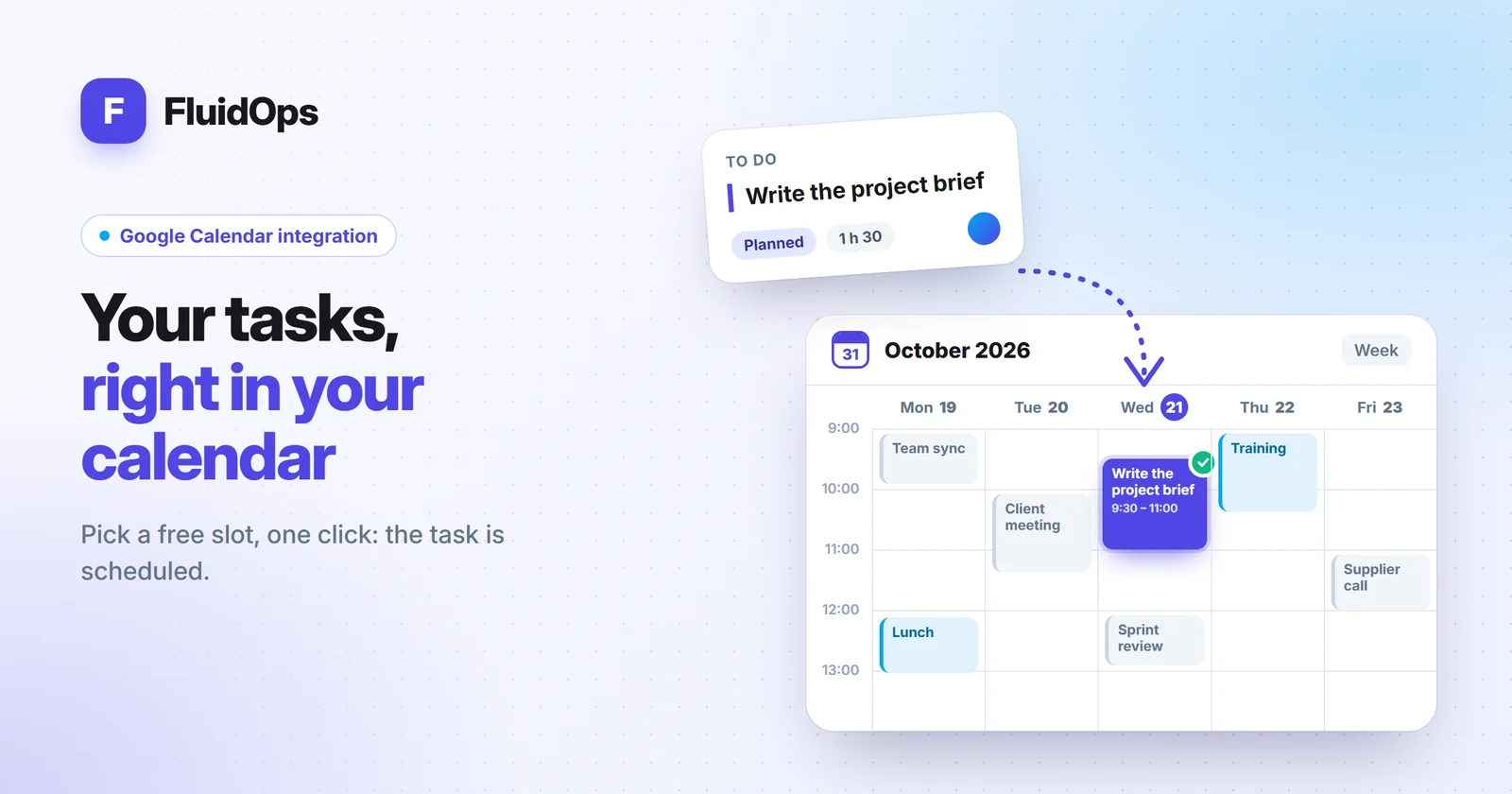
- Schedule a task in a free slot. Click “Schedule a task”: FluidOps shows your day, spots the free time and warns you if the slot you pick overlaps an event. One click on “Schedule” and the event is created in your Google Calendar.
- Respect your working hours. Set your working days and hours (9 am to 6 pm, Monday to Friday by default): suggested slots stay within them. Something urgent on a Saturday? You can still schedule outside them, case by case.
- Keep task and event linked. A scheduled task gets the “Planned” status. If you unschedule it, the event disappears from your calendar and the task stays in “My tasks”. If you delete the event directly in Google Calendar, FluidOps notices and the task is no longer marked as planned.
- Push your due dates to your calendar. From “Account settings › Integrations”, the “Push due dates to Calendar” button adds your tasks' due dates to your main calendar: no deadline catches you off guard.
- A connection that stays on. You connect Google once: after a page reload or a new sign-in to FluidOps, your calendar is already there, with no Google window to approve again.
How much time will you save?
Without an integration, scheduling a task means: copy its title, open your calendar, look for a gap, create the event, go back to your project tool, update the task. With FluidOps, you simply pick the task, then the slot, and click “Schedule”.
A simple example: if you schedule 10 tasks a week and each manual copy takes you 2 minutes, that's 20 minutes a week, or about 15 hours over a working year. But the real gain is elsewhere: fewer forgotten tasks, fewer meetings booked over your focus time, and a week you can finally see as a whole.
Connect Google Calendar to FluidOps in 4 steps
It takes less than a minute.
- Open FluidOps and click “Connect Google Calendar” in the Calendar widget (or in “Account settings › Integrations”).
- Grant access. Google shows a screen in FluidOps' name: choose your account and tick calendar access. If the box isn't ticked, FluidOps tells you so you can try again.
- Come back to FluidOps, automatically: your events appear in the Calendar widget. In “Calendar settings”, adjust your working hours if needed.
- Schedule your first task: “Schedule a task”, choose the task and a free slot, then confirm with “Schedule”. You can also use “Add to Calendar” straight from a task card.
Your data stays under your control
- Calendar-only access. FluidOps only asks to read and create events in your calendar. It has no access to your emails, your contacts or your Drive files.
- Protected access. The authorization that keeps the connection on is encrypted and stored server-side: your browser never sees it.
- You can switch it off at any time. The “Disconnect Google” button revokes access at Google. You can also remove it from your Google account: FluidOps notices and offers to reconnect. And if you delete your FluidOps account, the access is deleted with it.
Included in the free plan
Many project management tools keep integrations for paid plans. In FluidOps, the Google Calendar connection is included in the free plan, just like Outlook Calendar for teams on Microsoft 365. See our pricing for plan details.
Frequently asked questions
Is the Google Calendar connection free?
Yes. It's included in every FluidOps plan, including the free one.
What if I use Outlook instead of Google?
FluidOps also connects to Outlook Calendar, with the same features: calendar view, scheduling in a free slot and pushing due dates.
What happens if I delete the event in Google Calendar?
FluidOps detects it: the task is no longer marked as planned, but it stays in “My tasks” with all its information.
Do I have to reconnect to Google on every visit?
No. Once Google is connected, your calendar stays available after a page reload or a new sign-in to FluidOps.
How do I disconnect Google Calendar?
Click “Disconnect Google” in “Calendar settings”. Access is revoked at Google, and your tasks stay intact in FluidOps.
Sources
- Gollwitzer, P. M., & Sheeran, P. (2006). Implementation intentions and goal achievement: A meta-analysis of effects and processes. Advances in Experimental Social Psychology, 38, 69-119. doi:10.1016/S0065-2601(06)38002-1
- Rubinstein, J. S., Meyer, D. E., & Evans, J. E. (2001). Executive control of cognitive processes in task switching. Journal of Experimental Psychology: Human Perception and Performance, 27(4), 763-797. doi:10.1037/0096-1523.27.4.763
- Mark, G., Gudith, D., & Klocke, U. (2008). The cost of interrupted work: More speed and stress. Proceedings of CHI 2008, 107-110. doi:10.1145/1357054.1357072